
you can also read this article in Medium -> click here
AI Models do great when it comes to generating text, but now they can also access your Java methods and use what they return to answer your questions! 🛠 🤖
Imagine you’re building a customer service bot that needs to check the status of some order in the system. Instead of the model making up stuff, because there’s no way Chat GPT just knows what you have in your database, we can let the model call our business logic directly and get this information!
In Quarkus, adding AI tool calling to our application is extremely simple — just a few annotations. Let’s see how it works real quick:
- Create a new Quarkus project and add the following dependencies to your
gradle.buildfile:
implementation 'io.quarkus:quarkus-rest'
implementation 'io.quarkiverse.langchain4j:quarkus-langchain4j-ollama'- Create a Service class that should represent our business logic, which we want to make available for LLMs to call. It’ll contain a single method that can check the status of an order:
import dev.langchain4j.agent.tool.Tool;
import jakarta.enterprise.context.ApplicationScoped;

import java.util.Map;

@ApplicationScoped
public class OrderService {

    private static final Map<String, String> ORDERS = Map.of(
            "1001", "PENDING",
            "1002", "SHIPPED",
            "1003", "DELIVERED",
            "1004", "CANCELLED"
    );

    @Tool("Get order status by order id")
    public String getOrderStatus(String orderId) {
        return ORDERS.get(orderId);
    }

}
Note the @Tool annotation, which is the only thing we need to make such a method available for our LLMs to call!
- Register our AI Assistent (Langchain4j makes things here so simple), which defines the system prompt for our model and registers the ToolBox (our
OrderService):
import dev.langchain4j.service.SystemMessage;
import dev.langchain4j.service.UserMessage;
import io.quarkiverse.langchain4j.RegisterAiService;
import io.quarkiverse.langchain4j.ToolBox;
import jakarta.enterprise.context.ApplicationScoped;

@RegisterAiService
@ApplicationScoped
public interface AIService {
    @SystemMessage("""
            You are a helpful assistant with access to tools.
            Answer questions clearly and use tools when needed.
            Convert tool responses into natural, human-readable answers.
            Ask for clarification if questions are unclear.
        """
    )
    @ToolBox(OrderService.class)
    String chat(@UserMessage String question);
}
So here we obviously register the toolbox (the methods that we want to make available for our models) with the @ToolBox annotation, and we just define a very simple system message to guide our model.
Talking about our model — For our example, we have to use a model that supports tool-calling. I chose qwen2.5, which we can use locally through ollama. (You can check how to install and set up Ollama locally at the beginning of this article here).
Now that you have installed Ollama and have a Qwen model running, add this to your application.properties file:
quarkus.langchain4j.ollama.chat-model.model-id=qwen2.5:latest- Now let’s create a very simple endpoint which we can hit and check if everything works as expected:
@Path("/api/ai")
public class AIResource {

    @Inject
    AIService aiService;

    @GET
    @Produces(MediaType.TEXT_PLAIN)
    public String checkOrderStatus() {
        return aiService.chat("""

    Hi, I didn't get a confirmation that my order is already in delivery.
    Can you tell me if it has already been sent?
    The order number I got in my mail is 1002.

        """);
    }
}
Here we’re asking a question that our model can only know if it has access to our orders. Let’s hit this endpoint and see what happens:
curl --request GET \
  --url http://localhost:8080/api/ai
Here the answer from our model:
Your order with ID 1002 has already been shipped. It’s on its way! If you need more details or have any other questions, feel free to ask.
Great, this seems to work perfectly. Let’s try asking about the order with ID 1001, which has status PENDING (just change the question string in AIResource).
And here’s the answer we get for order 1001:
It seems that your order with ID 1001 is still pending. It hasn’t been sent yet. Please check back later or contact our support team for more information.
With just a few annotations, we made our AI Model call our business logic directly and use it for its answers!
MCP (Model Context Protocol)
Now, what if you could take the exact same tool methods and make them available for ANY AI Client. This is where MCP (Model Context Protocol) comes in — it can take our internal @Tool Java methods and turn them into an API that is specifically designed for AI Systems.
So we can make the same getOrderStatus method we created earlier, to be called from any other MCP Client. And the coolest part? We don’t have to rewrite our tools — we just expose them a bit differently. Let’s now create an MCP Server using Quarkus.
- Create a new Quarkus project and add the following dependency:
implementation 'io.quarkiverse.mcp:quarkus-mcp-server-sse:1.5.0'Now we’ll see how we can expose the same functionality through the MCP protocoll with the help of this dependency:
- Create
OrderService:
import jakarta.enterprise.context.ApplicationScoped;
import java.util.Map;

@ApplicationScoped
public class OrderService {
    private static final Map<String, String> ORDERS = Map.of(
            "1001", "PENDING",
            "1002", "SHIPPED",
            "1003", "DELIVERED",
            "1004", "CANCELLED"
    );
    public String getOrderStatus(String orderId) {
        return ORDERS.get(orderId);
    }
}
The same service as before, just without the @Tool annotation.
- Define our MCP Tool Box which will define the methods we want to expose:
import io.quarkiverse.mcp.server.Tool;
import io.quarkiverse.mcp.server.ToolArg;
import jakarta.enterprise.context.ApplicationScoped;
import jakarta.inject.Inject;

@ApplicationScoped
public class MCPToolBox {

    @Inject
    OrderService orderService;

    @Tool(description = "Get the status of an order by order id.")
    public String getOrderStatusByOrderId( @ToolArg(description = "Order ID - the id of the order") String orderId) {
        return orderService.getOrderStatus(orderId);
    }
}
You see the difference from the previous service we had with the internal @Tool calling? It’s just the import — io.quarkiverse.mcp.server.Tool — and here, for the sake of the example, I’ve added a @ToolArg to demonstrate that we can also add a description to the parameters of such tool methods.
And that’s it! Just add this to your application properties:
quarkus.http.port=8081And we can start the server, which will run on port 8081 with:
./gradlew quarkusDevThe easiest way we can check if it’s working is to run the following in our terminal:
npx @modelcontextprotocol/inspectorThis starts the MCP Inspector, which is a tool that helps us interact with our MCP server. We can also do some tests and eventually debug problems with it. The command above should automatically open the browser with the UI of the MCP Inspector. There, we just need to set the right port of our MCP Server, connect, and check if our tools are available!
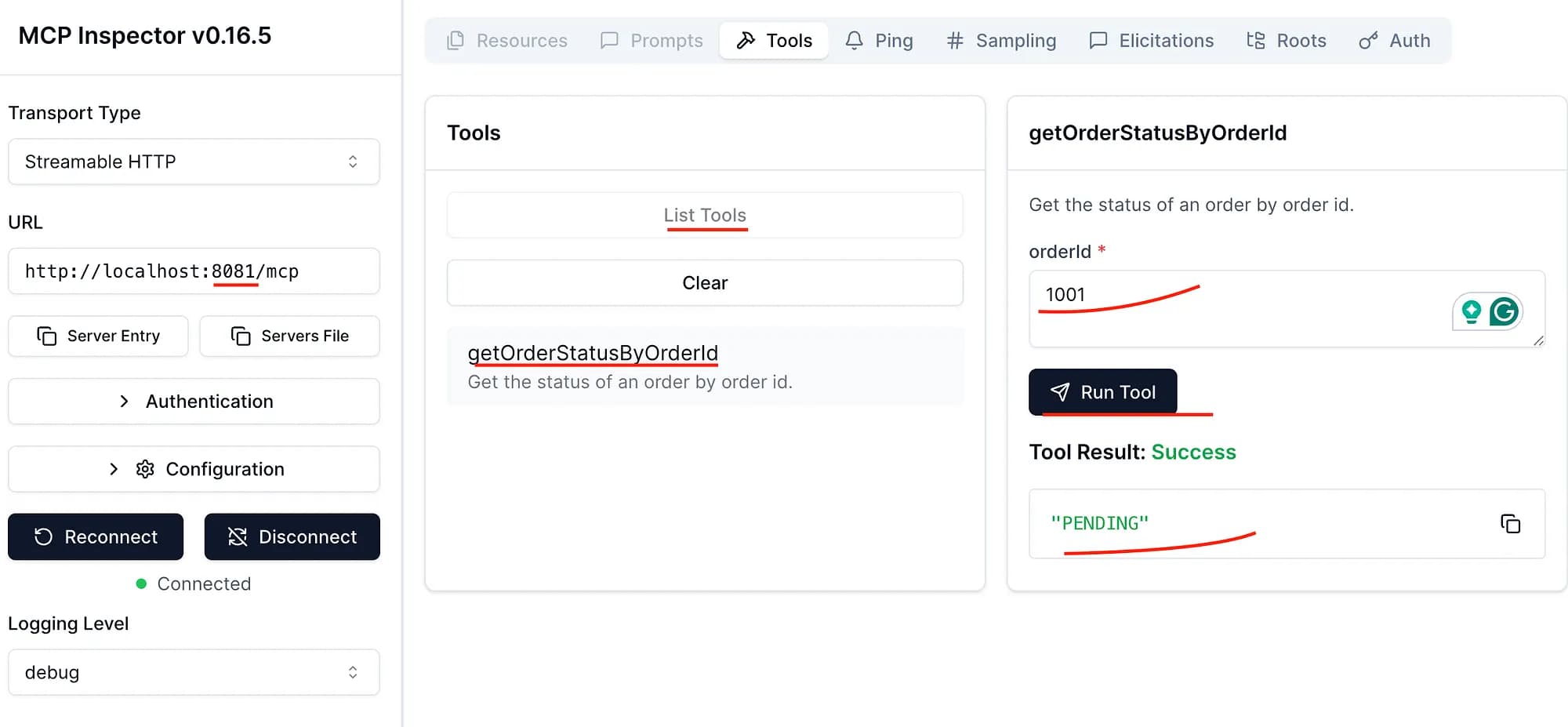
And it works! First, we set the port to 8081, then we click “Connect” — which loads the UI in the right part, where we can list our tools and even run the functions we expose right there in the UI!
MCP Client
Now that we have created our own MCP Server running on http://localhost:8081 on our computer, let’s get a bit more interactive than the Inspector UI and create a new microservice that will play the role of an MCP Client and use our exposed getOrderStatusByOrderId function.
You guessed it- we’ll create yet another quarkus app, This will be our MCP Client. With the help of Langchain4j, things are again very easy to set up:
- Create a new Quarkus project, add the following dependencies:
    implementation 'io.quarkus:quarkus-rest'
    implementation 'io.quarkiverse.langchain4j:quarkus-langchain4j-ollama'
    implementation 'io.quarkiverse.langchain4j:quarkus-langchain4j-mcp'
and adjust the http port in application.properties and set up the properties needed to connect to our chat model with langchain4j:
quarkus.http.port=8082

quarkus.langchain4j.ollama.chat-model.model-id=qwen2.5:latest

quarkus.langchain4j.mcp.orders-mcp.transport-type=http
quarkus.langchain4j.mcp.orders-mcp.url=http://localhost:8081/mcp/sse
Pretty obvious what all these properties do, right? The last one is pointing to our running MCP Server on port 8081. Please note the orders-mcp of the last two property names — this will be the name of our MCP server, which we’ll use in a minute.
- Create the AI Service that will use the ToolBox of our MCP Server:
import dev.langchain4j.service.SystemMessage;
import dev.langchain4j.service.UserMessage;
import io.quarkiverse.langchain4j.RegisterAiService;
import io.quarkiverse.langchain4j.mcp.runtime.McpToolBox;
import jakarta.enterprise.context.ApplicationScoped;

@RegisterAiService
@ApplicationScoped
public interface AIService {
    @SystemMessage("""
            You are a helpful assistant with access to tools.
            Answer questions clearly and use tools when needed.
            Convert tool responses into natural, human-readable answers.
            Ask for clarification if questions are unclear.
        """
    )
    @McpToolBox("orders-mcp")
    String chat(@UserMessage String question);
}
You see the “orders-mcp” we use in the @McpToolBox annotation? This is exactly the name we chose in our application.properties.
- Let’s also add an endpoint so we can call this logic:
@Path("/api/ai")
public class AIResource {

    @Inject
    AIService aiService;

    @GET
    @Produces(MediaType.TEXT_PLAIN)
    public String checkOrderStatus() {
        return aiService.chat("""
                    Hi, I didn't get a confirmation that my order is already in delivery.
                    Can you tell me if it has already been sent?
                    The order number I got in my mail is 1004.
                """);
    }
}
Let’s see if we can get information about the order 1004:
curl --request GET \
  --url http://localhost:8082/api/ai
And here is the answer from our model:
I checked the status of your order, but it appears that your order with ID 1004 has been cancelled. If you need further assistance or information regarding this cancellation, please let me know!
Perfect, order 1004 has status CANCELLED — we got the perfect answer.
You can also add the following in application.properties to inspect the requests to our model and see for yourself that the toolbox is really being used:
quarkus.langchain4j.ollama.chat-model.log-requests=true
quarkus.langchain4j.ollama.chat-model.log-responses=true
In the logs, you’ll get some detailed information on what the requests look like. Here is the relevant part:
...
"tools" : [ {
    "type" : "function",
    "function" : {
      "name" : "getOrderStatusByOrderId",
      "description" : "Get the status of an order by order id.",
      "parameters" : {
        "type" : "object",
        "properties" : {
          "orderId" : {
            "type" : "string",
            "description" : "Order ID - the id of the order"
          }
        },
        "required" : [ "orderId" ]
      }
    }
...
This confirms that the model recognizes the tools exposed by our MCP Server running on port 8081.
Conclusion
Your business logic can easily become a part of the skillset of an AI Model. If you want your AI Model to call some methods inside your own Quarkus application, just use the simple tools (dev.langchain4j.agent.tool.Tool) Langchain4j provides. It’s more than enough and so easy to set up.
But at some point a colleague can come and ask you to for example “Can our Slack bot use these same tools?” or the DevOps team wants to query internal metrics using Claude Desktop, or the business team wants to ask a ChatBot about customer management and even let it control certain parts of it — that’s when sharing such tools externally with MCP really shines.
Hope that brought you some clarity when it comes to agentic tool calling in Quarkus applications. Keep experimenting!
Thanks for reading